
Genshin Impact PC Download Guide and Installation Steps
Master the essential Genshin Impact PC download process in 2026 for the optimal Windows experience, ensuring superior performance and seamless setup. Our definitive guide provides crucial system requirements, clear installation steps, and expert troubleshooting tips.
If you're trying to figure out how to download Genshin Impact on PC, the process is pretty simple once you know the right path. In 2026, with the Version 6.x Luna V cycle already rolling, the Windows version is still the cleanest way to play: better frame rates, sharper visuals, and much more precise controls than what most mobile setups can offer. This guide walks you through the full Genshin Impact PC download process, along with system requirements, install steps, setup tips, and the most common fixes if something goes wrong.
How to Download Genshin Impact on PC
The easiest and safest way to start your Genshin Impact PC download is through HoYoverse directly. Head over to genshin.hoyoverse.com, hit the Download button on the homepage, and choose the Windows version. That gives you the HoYoPlay launcher installer, which is about 172 MB and now serves as HoYoverse's all-in-one launcher for games like Honkai: Star Rail and Zenless Zone Zero too.
If you'd rather keep everything in one storefront, the Epic Games Store works as well. Just search for "Genshin Impact," click Get since it's free-to-play, and let Epic handle the launcher install. Either way, you're ending up with the same game client and the same cross-save support, so it really just comes down to which launcher you prefer using.
Once HoYoPlay or Epic is installed, you'll need to log in or create a HoYoverse account. Registration is free and only asks for an email address. After that, you'll be asked to choose a server: North America (NA), Europe (EU), Asia (AS), or SAR (TW/HK/MO). This part matters more than some players expect, because your progress stays on that server and can't be moved later. If possible, pick the region closest to you or the one your friends use, especially since ping in the 150–200 ms range can make combat feel noticeably less responsive.
Genshin Impact PC Requirements and Download Size
Before you hit install, it's worth checking whether your PC is actually ready for modern Genshin. The game's requirements have crept upward over the years, and the 2026 Luna V era expects a lot more from your hardware than the original 2020 release did.
| Specification | Minimum | Recommended |
|---|---|---|
| Operating System | Windows 10 64-bit | Windows 11 64-bit |
| Processor | Intel Core i5 (7th gen+) | Intel Core i7-12700 or equivalent |
| RAM | 8 GB | 16 GB |
| GPU | NVIDIA GeForce GTX 1060 6GB | NVIDIA RTX 3060 or AMD equivalent |
| DirectX | Version 11 | Version 12 |
| Storage | 150 GB free | 150 GB free (SSD strongly recommended) |
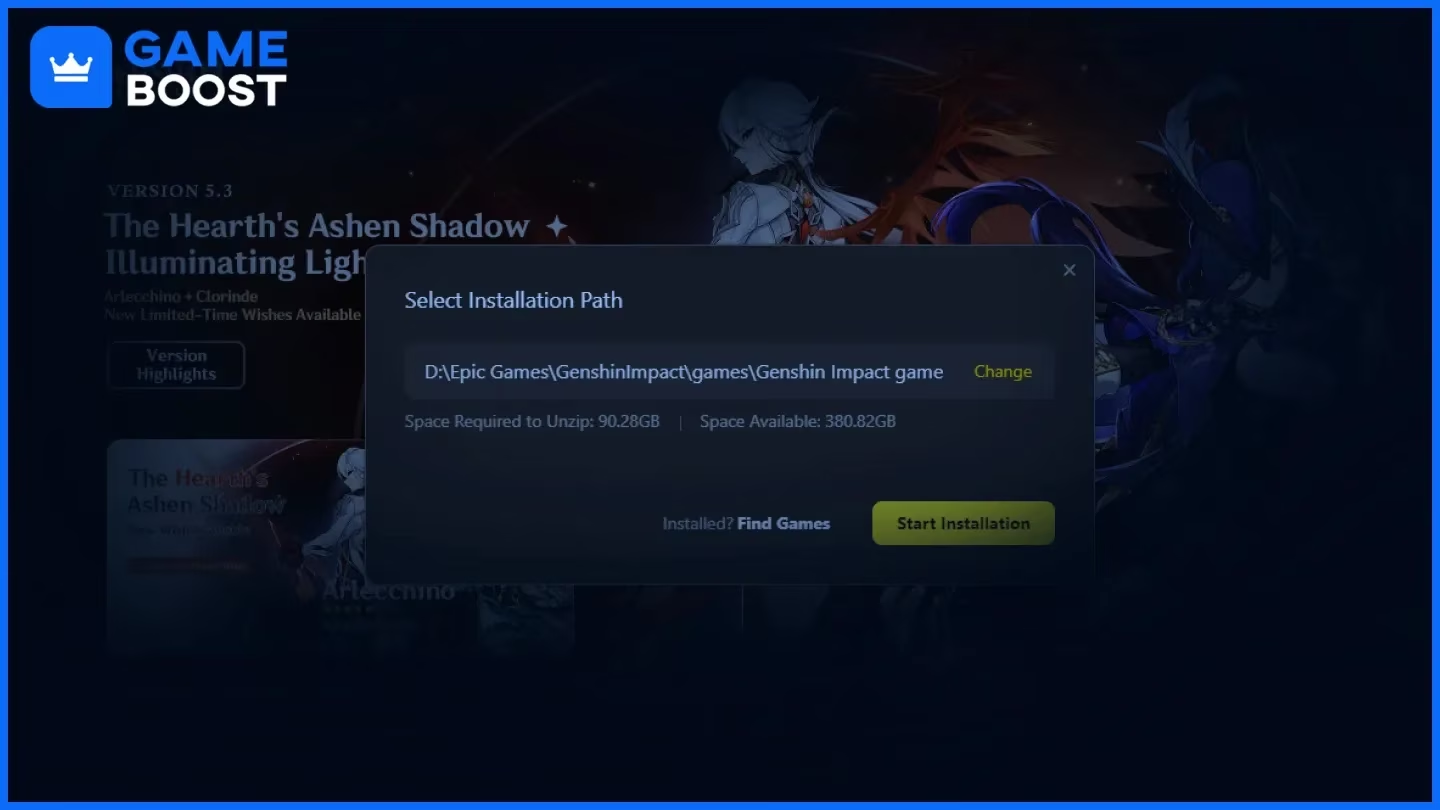
The big number here is 150 GB of free storage. That's the one you really don't want to ignore in 2026. Between Fontaine, Natlan, the ongoing Snezhnaya storyline, full voice acting, and higher-quality cinematic files, the PC version has become much heavier than it used to be. The launcher itself is tiny at around 172 MB, but the actual game client with one voice pack installed usually ends up around 90–100 GB, and you still want extra room left over for unpacking and future patches.
At this point, an SSD is basically mandatory if you want the game to feel smooth. On an old mechanical hard drive, loading between teleport points can take 20 to 30 seconds. On an NVMe SSD, that can drop to under eight seconds, which is a massive difference when you're moving around Teyvat constantly.
RAM is another area where the bare minimum and the practical minimum are not really the same thing anymore. Yes, 8 GB can still run the game, but 16 GB is the realistic target now, especially if you keep Discord, browser tabs, overlays, or recording software open in the background. Genshin itself can use around 4–6 GB, and Windows plus background apps can easily eat another 4–5 GB.
As for graphics, integrated GPUs can get the game running at low settings, but if you want a stable 60 FPS at 1080p on medium or higher, a dedicated graphics card is the safer bet. Laptop players should also keep expectations in check: minimum-spec machines can be playable, but they usually run hot. Plugging the laptop in and making sure the system is actually using the dedicated GPU instead of defaulting to integrated graphics solves a lot of the usual performance complaints.
Genshin Impact PC Installation Steps
Once you've downloaded the HoYoPlay installer, the rest is straightforward. Still, there are a few choices during setup that can save you a headache later.
- Run the installer with admin permissions.
Right-click the installer and choose "Run as administrator." This helps avoid the usual permission-related install failures, especially on systems with stricter User Account Control settings. The launcher itself can be installed on pretty much any drive.
- Choose your game install location carefully.
After you log into HoYoPlay and select Genshin Impact, the launcher asks where you want the game files stored. Pick an SSD with at least 150 GB free. Also, try to avoid folders with special characters or non-ASCII names, since those can sometimes trigger file verification issues.
- Start the full client download.
Click Install or Download in the launcher and let it run. Download speed will depend on your connection and current server traffic, and the launcher shows both progress and estimated time remaining. You don't need to keep it front and center either; minimizing it is completely fine.
- Wait for verification, then launch the game.
After the download finishes, HoYoPlay automatically checks the game files before enabling the Play button. This can take a few minutes, especially on slower drives. Once that's done, hit Play and you'll reach the title screen, where your login and server choice are confirmed.
Genshin Impact PC Settings After Download
After the game is installed, spending a few minutes in the settings menu is absolutely worth it. A decent first-time setup can make Genshin feel way better right out of the gate.
For graphics, you can start with one of the built-in presets: Low, Medium, High, or Highest. If you're on mid-range hardware, High is usually a solid starting point. From there, test performance somewhere busy, like a Weekly Boss fight or a camp with lots of effects on screen.
A few settings matter more than the others:
-
Shadow Quality: Dropping this from High to Medium usually gives back around 10–15% GPU headroom without making the game look dramatically worse.
-
Volumetric Fog: Setting this to Low can noticeably reduce the load in open-world areas.
-
FPS cap: The default is 60 FPS, but players with stronger hardware and high-refresh monitors can push it to 120 FPS in the graphics settings.
-
Render Resolution: Raising it above 1.0 sharpens the image through supersampling, while lowering it below 1.0 helps weaker systems gain performance.
Controls are also easy to tweak. Keyboard and mouse bindings can be fully remapped in the Controls tab, and a lot of players end up moving Elemental Skill or Burst to keys that feel more natural. If you prefer a controller, Genshin supports Xbox, PlayStation, and standard XInput pads, and you can switch to controller input without restarting the game. That's honestly one of the nicer things about the PC version.
For audio and language settings, head to Settings → Language. You can remove unused voice packs to free up several gigabytes, and download other voice languages later if you want them. That's a very handy way to reclaim storage, especially if your SSD space is tight.
Genshin Impact PC Download Problems and Fixes
Even if you follow the normal install path, a few issues still show up pretty often. The good news is that most of them are easy to fix.
Slow download speeds or downloads getting stuck are usually tied to network conditions, not the launcher itself. In a lot of cases, simply pausing and resuming the download in HoYoPlay gets things moving again. If you're using a VPN, turn it off during the download, since some VPN routes get throttled by HoYoverse's CDN. And if you're on Wi-Fi, switching to Ethernet is one of the fastest ways to rule out interference.
Verification getting stuck or "file verification failed" errors usually point to either corrupted files or a permissions issue on the install drive. Open HoYoPlay, click the gear icon next to Genshin Impact, choose Repair, and let the launcher scan and replace damaged files. If that keeps looping, reinstalling the game to a different folder or drive usually fixes it.
Insufficient storage errors during installation can happen even when Windows says you still have enough space. That's because some of that reported free space is effectively reserved as a buffer. In practice, having an extra 10–20 GB beyond the listed requirement makes these errors much less likely. After the game is installed, deleting unused voice packs can also free up around 3–6 GB.
Launcher not opening or crashing on startup usually comes down to one of three things:
-
Antivirus software has quarantined or blocked the launcher
-
Microsoft Visual C++ redistributables are missing or outdated
-
Your GPU drivers are too old for the launcher's UI renderer
The usual fixes are pretty straightforward:
-
Add HoYoPlay to your antivirus exclusion list
-
Install the latest Microsoft Visual C++ redistributables from Microsoft's official site
-
Update your graphics drivers to the latest stable version, whether that's NVIDIA Studio/Game Ready or AMD Adrenalin
-
Run the launcher as administrator
-
Temporarily check firewall rules if HoYoPlay still refuses to open
Conclusion
Getting Genshin Impact on PC installed the right way is mostly about using the official HoYoPlay launcher or Epic Games Store, picking a proper SSD install location, and making sure your hardware actually matches the 2026 baseline. Do that, and you skip almost all of the common setup problems before they even happen. PC is still the best place to experience Teyvat, with the strongest visuals, the smoothest controls, and the most flexible settings. If you've got the 150 GB of free space, a decent mid-range GPU, and a few minutes to tune your graphics and controls, you're ready to jump straight into the current Luna V content cycle.
Comments (0)